Administrator Guide
Complete guide to managing your BlueMoxon collection
Overview
BlueMoxon provides a full-featured admin interface for managing your rare book collection. Authenticated users can add, edit, and delete books, upload images, write analysis documents, and manage reference data like authors and publishers.
Book Management
Full CRUD operations for books with comprehensive metadata fields.
Image Handling
Upload, reorder, and manage images with CDN delivery.
Analysis Documents
Rich markdown editor with live preview for detailed analyses.
Reference Data
Manage authors, publishers, and binders with autocomplete.
Authentication
BlueMoxon uses AWS Cognito for authentication. Users must sign in to access admin features like adding or editing books.
Signing In
- Click the Sign In button in the navigation bar
- Enter your email address and password
- If you have MFA enabled, enter your verification code
- Upon successful login, you'll see admin controls appear throughout the interface
Session Management
JWT tokens are stored securely and automatically refreshed. Sessions typically last 1 hour, with automatic refresh for up to 30 days of continuous use.
Adding Books
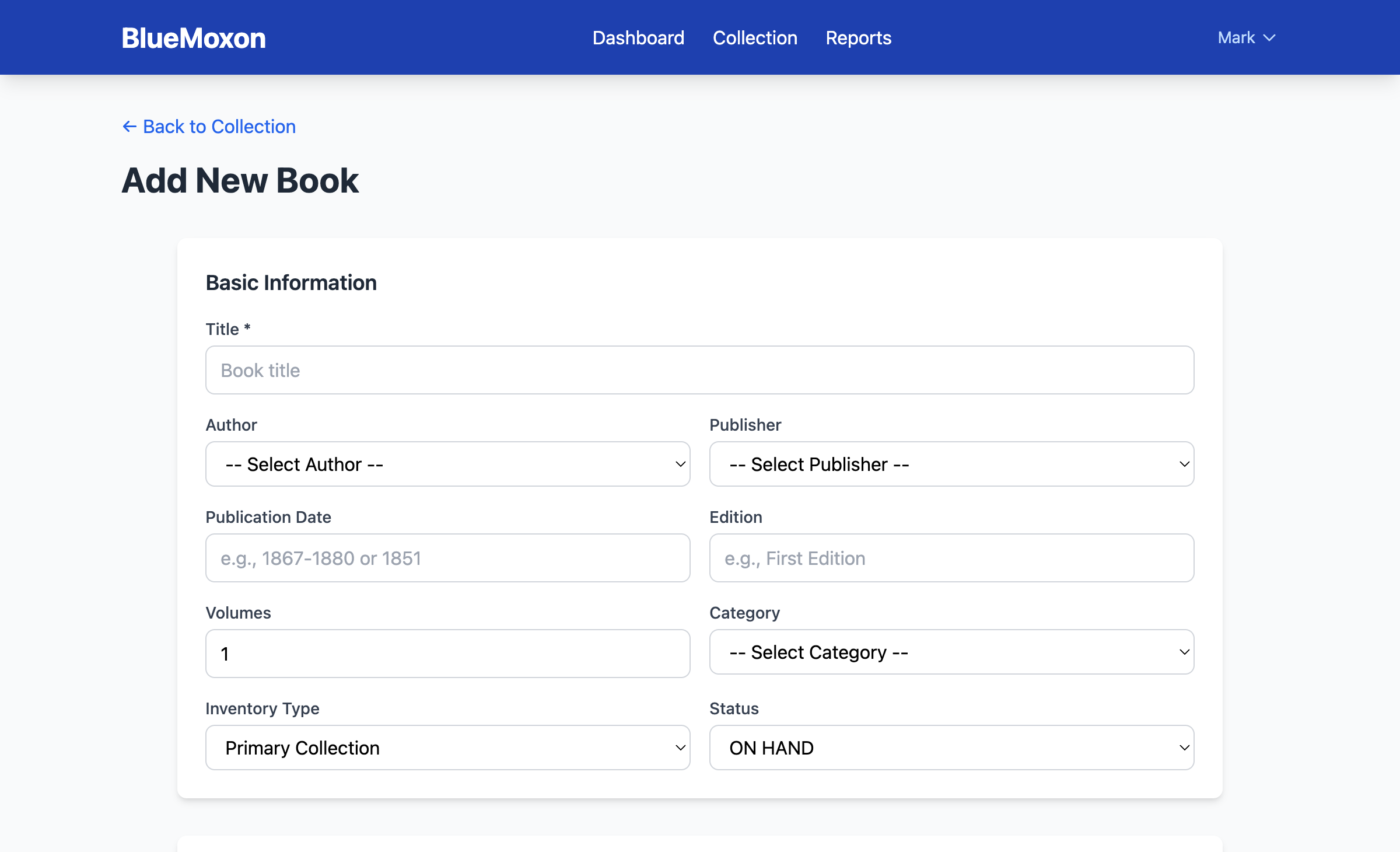
New books can be added through the web interface or via the REST API. The web form provides guided input with dropdowns for reference data and validation for required fields.
Required Fields
| Field | Description | Example |
|---|---|---|
| Title | Book title (do not include author/publisher) | Essays of Elia |
| Author | Select from dropdown or create new | Charles Lamb |
| Publisher | Publisher and location | Dent, London |
| Publication Date | Year of publication | 1867 |
Optional Fields
- Volumes: Number of volumes (default: 1)
- Binding Type: Morocco, calf, vellum, cloth, etc.
- Binder: Known binder (Rivière, Zaehnsdorf, etc.)
- Inventory Type: PRIMARY, EXTENDED, or FLAGGED
- Value Range: Low, mid, and high estimates in USD
- Purchase Price: Actual acquisition cost
- Purchase Date: When acquired
- Order Number: eBay/Etsy order reference
- Place of Purchase: eBay, Etsy, AbeBooks, etc.
- Notes: Free-form notes
Editing Books
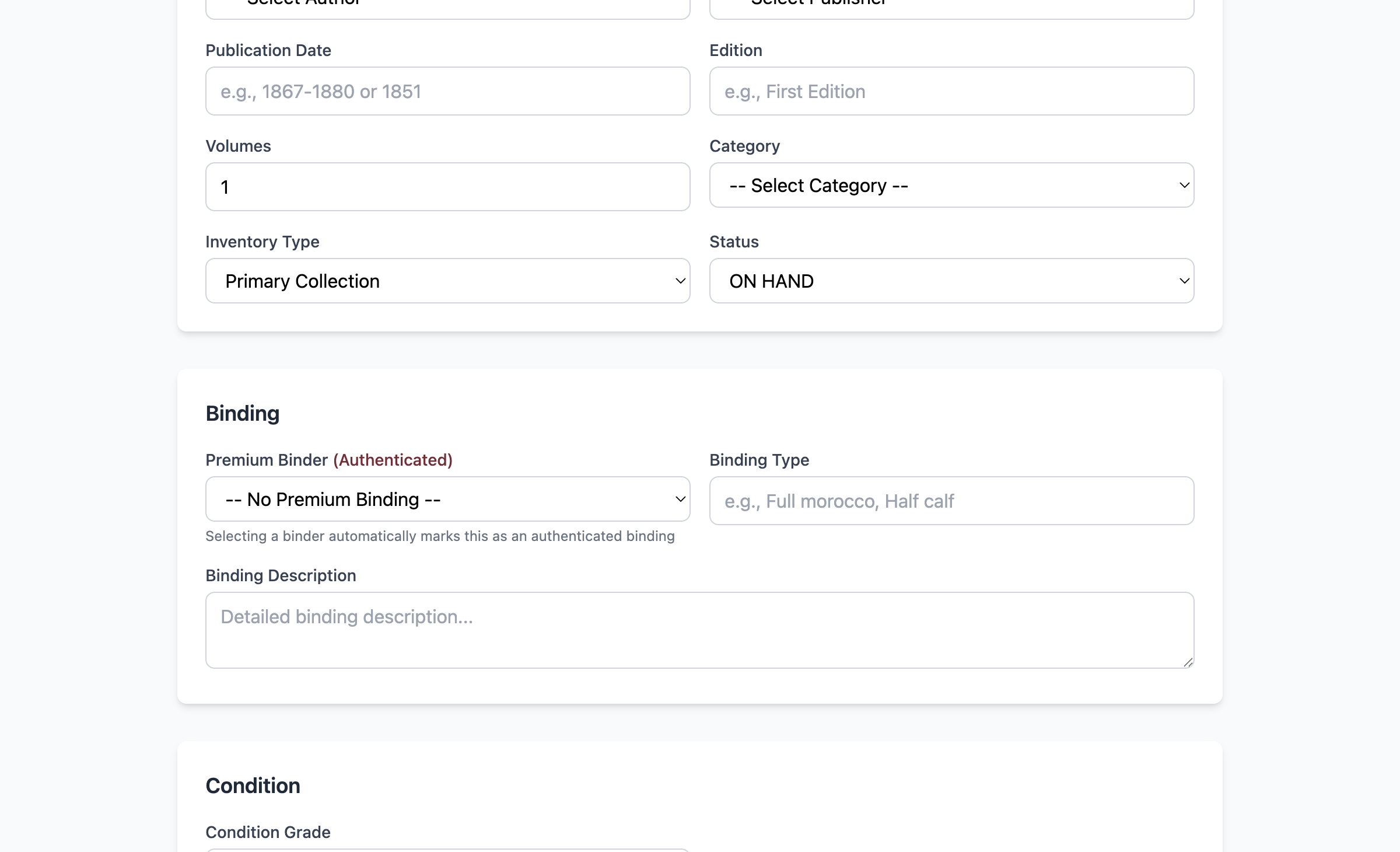
Existing books can be edited by clicking the Edit button on any book detail page. All fields are editable, and changes are saved immediately when you click Save.
Edit Actions
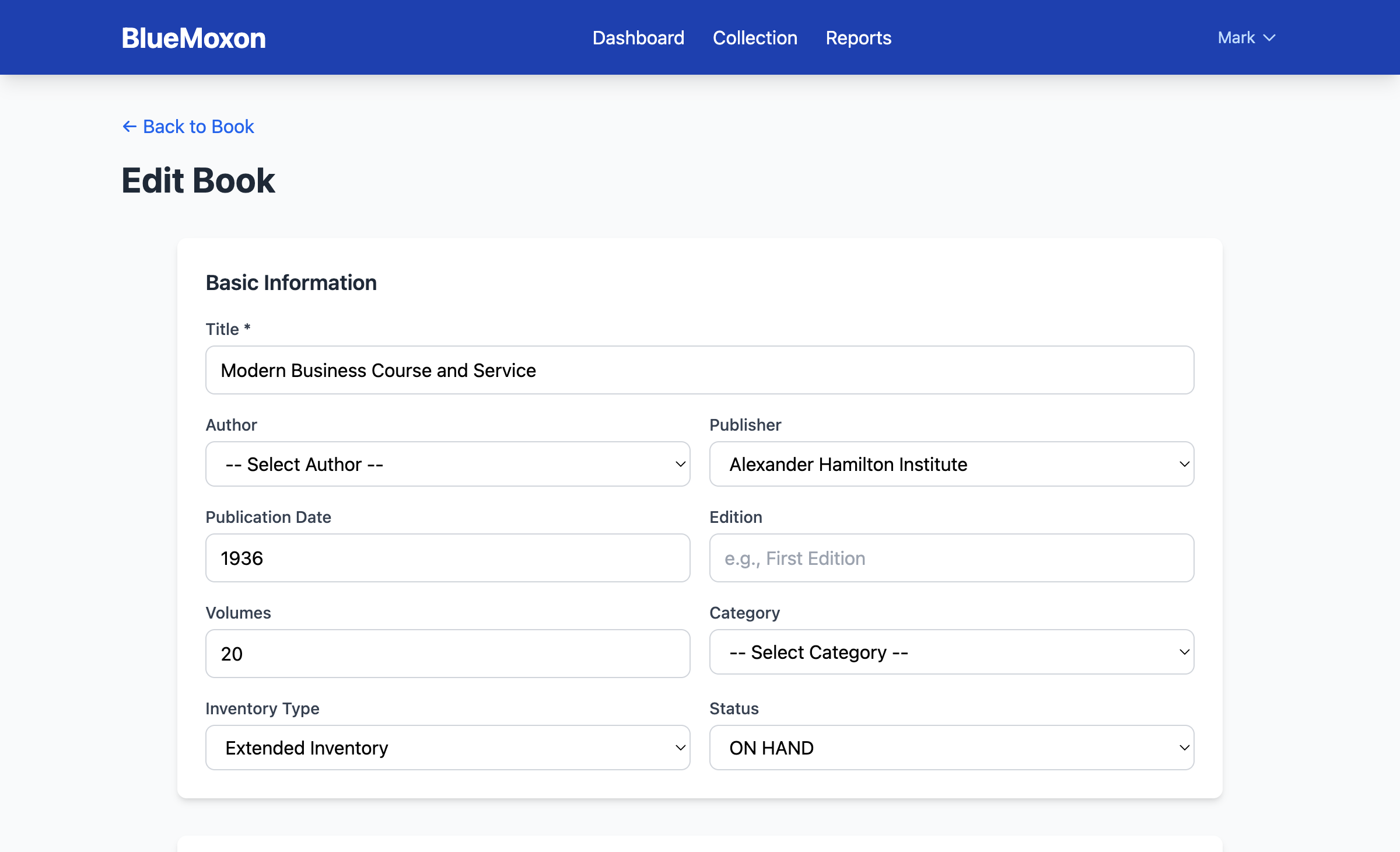
- Edit Metadata: Modify any book field
- Update Status: Change delivery status (IN_TRANSIT, ON_HAND)
- Edit Analysis: Open the markdown editor for analysis documents
- Manage Images: Add, remove, or reorder images
Deleting Books
Books can be permanently deleted from the book detail page. This action requires confirmation and cannot be undone.
- Navigate to the book detail page
- Click the Delete button (red, typically in the action bar)
- Confirm the deletion in the modal dialog
- The book and all associated data will be permanently removed
Status Tracking
Books can have different delivery statuses to track acquisitions from purchase to arrival.
| Status | Description |
|---|---|
| IN_TRANSIT | Purchased but not yet received |
| ON_HAND | Physically in the collection |
| SOLD | Sold or transferred out of collection |
| REMOVED | Removed from collection (damaged, lost, etc.) |
Updating Status via API
curl -X PATCH "https://api.bluemoxon.com/api/v1/books/{id}/status?status=ON_HAND" \
  -H "X-API-Key: $BMX_API_KEY"
Acquisitions Dashboard
The Acquisitions Dashboard is your command center for tracking book purchases from discovery through delivery. Access it from Admin → Acquisitions in the navigation.
Watchlist
Track potential acquisitions you're considering. Import eBay listings for research before committing to purchase.
In Transit
Monitor purchased items awaiting delivery. Track order numbers and expected arrival dates.
On Hand
Recent arrivals ready for cataloging. Convert to full collection entries with a single click.
Investment Scores
Each acquisition receives Investment Grade (0-100) and Strategic Fit (0-7) scores at import time.
Acquisition Workflow
The typical workflow follows this progression:
- Discover: Find a listing on eBay, Etsy, or another marketplace
- Import: Paste the URL into the Acquisitions Dashboard to auto-populate details
- Evaluate: Review the AI-generated investment scores and valuation estimate
- Purchase: If the scores warrant, complete the purchase and update status to "In Transit"
- Receive: When the book arrives, mark as "On Hand" and convert to collection entry
eBay Import
The eBay Import feature lets you paste a listing URL to automatically extract title, price, seller, images, and other metadata. This eliminates manual data entry and preserves the original listing information.
How to Import
- Copy the eBay listing URL from your browser
- Navigate to Admin → Acquisitions
- Click Import from eBay
- Paste the URL and click Import
- Review the extracted data and adjust if needed
- Save to add to your Watchlist or directly to In Transit
Extracted Fields
| Field | Source |
|---|---|
| Title | Listing title (cleaned up) |
| Price | Current/sold price (converted to USD) |
| Seller | Seller username |
| Images | All listing images (CDN links) |
| Item Number | eBay item ID for reference |
| Description | Listing description (if available) |
Supported Formats
The importer accepts various eBay URL formats:
https://www.ebay.com/itm/123456789https://www.ebay.co.uk/itm/123456789https://ebay.com/itm/title-slug/123456789
Investment Scoring
Every acquisition is automatically scored at import time using a proprietary algorithm that considers binding quality, author significance, collection fit, and purchase economics.
Investment Grade (0-100)
The Investment Grade measures the overall investment potential of an acquisition. Higher scores indicate better value propositions based on multiple factors.
| Score Range | Rating | Interpretation |
|---|---|---|
| 80-100 | Excellent | Strong buy - exceptional value and fit |
| 60-79 | Good | Solid acquisition - good value proposition |
| 40-59 | Fair | Consider carefully - some concerns |
| 0-39 | Poor | Pass recommended - weak value |
Strategic Fit (0-7)
Strategic Fit measures how well an acquisition aligns with your collection focus. This score considers your target author list, preferred publishers, and binding priorities.
Scoring Factors
- +2: Priority 1 target author
- +1: Priority 2-3 target author
- +1: Tier 1 publisher (Moxon, Pickering, etc.)
- +1: Premium binding (full morocco, signed binder)
- +1: Victorian era poetry (collection focus)
- +1: Multi-volume set
- +1: Extra-illustrated or unique features
Wayback Archive
The Wayback Archive feature automatically saves a snapshot of eBay listings to the Internet Archive. This preserves the original listing details, images, and pricing for future reference even after the listing expires or is removed.
Why Archive Listings?
- Provenance Documentation: Preserve the original listing as purchase evidence
- Price Verification: Original asking price for insurance or resale records
- Condition Records: Seller's description at time of purchase
- Image Backup: Original images even if eBay removes them
How It Works
- When you import an eBay listing, the system submits the URL to the Wayback Machine
- The archive URL is stored with the acquisition record
- Access the archived version anytime from the acquisition details
- Archive links are also preserved when converting to collection entries
Viewing Archived Listings
Click the View Archive link on any acquisition to open the preserved listing in a new tab. The archive shows the listing exactly as it appeared at capture time.
Shipment Tracking
Track your in-transit acquisitions with automatic carrier detection and real-time status updates. Add a tracking number to any book and BlueMoxon generates the tracking URL automatically.
Adding Tracking Information
- Navigate to the book detail page for an in-transit acquisition
- Click Add Tracking in the status section
- Enter the tracking number - the carrier is detected automatically
- Click Save to store the tracking information
- Click the tracking link to open the carrier's tracking page
Supported Carriers
| Carrier | Detection Pattern | Example |
|---|---|---|
| USPS | 20-22 digits starting with 9 | 9400111899223100123456 |
| UPS | 1Z followed by alphanumeric | 1Z999AA10123456784 |
| FedEx | 12-15 or 20-22 digits | 123456789012 |
| Royal Mail | 2 letters + 9 digits + GB | AB123456789GB |
| DHL | 10 digits | 1234567890 |
Tracking Status
Click Refresh Status to update the tracking status from the carrier. Status values include: pending, in_transit, out_for_delivery, delivered, exception.
Uploading Images
Each book can have multiple images. The first image (or designated primary) appears as the thumbnail in collection views.
- Navigate to the book detail page
- Click Add Images in the image section
- Select one or more image files (JPG, PNG supported)
- Images are uploaded to S3 and served via CloudFront CDN
- The page refreshes to show newly uploaded images
Reordering Images
Image order can be changed using drag-and-drop or the Reorder button. The first image becomes the primary thumbnail.
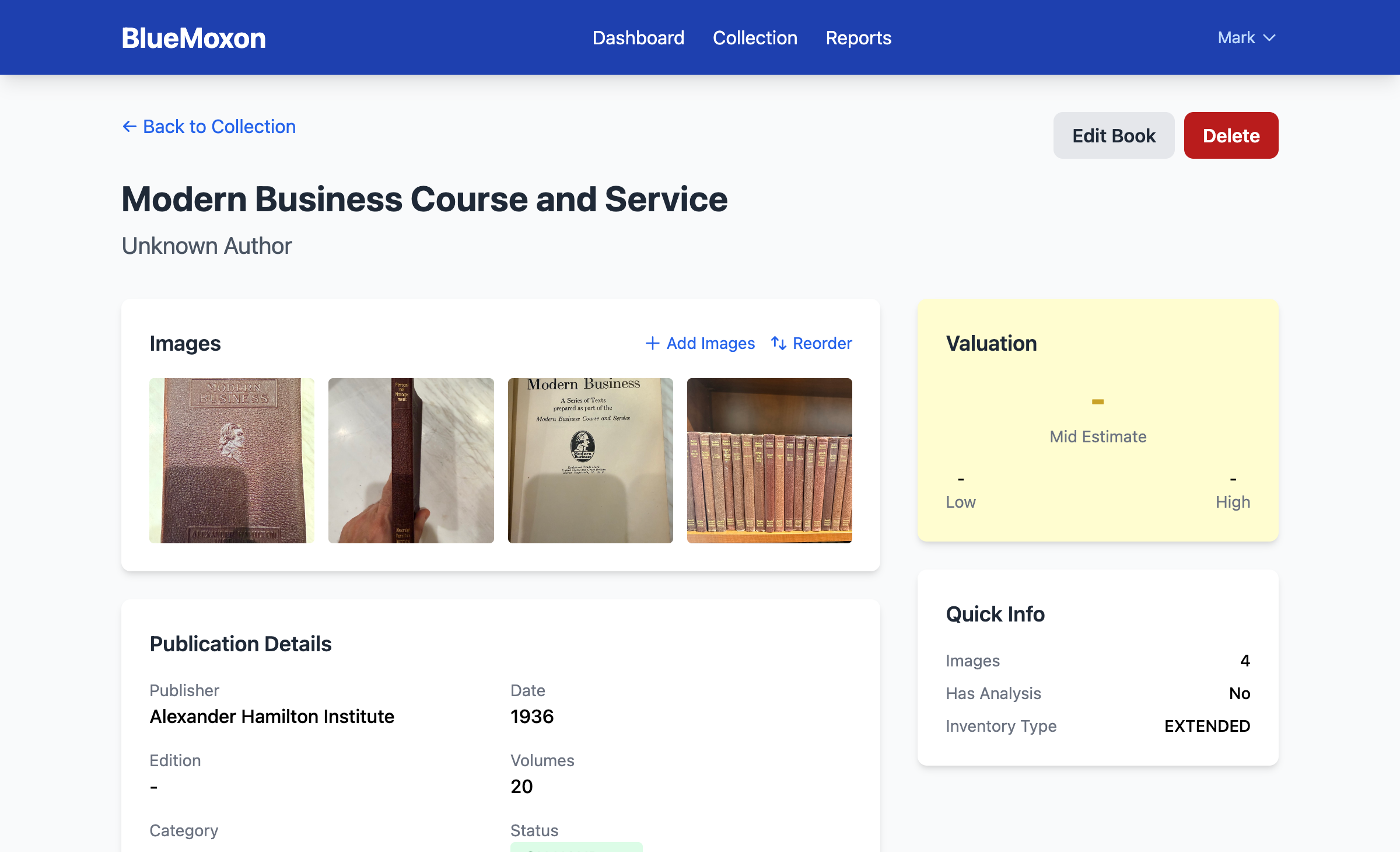
Image Actions
- Reorder: Drag images to change their display order
- Set Primary: Click to make an image the main thumbnail
- Delete: Remove individual images
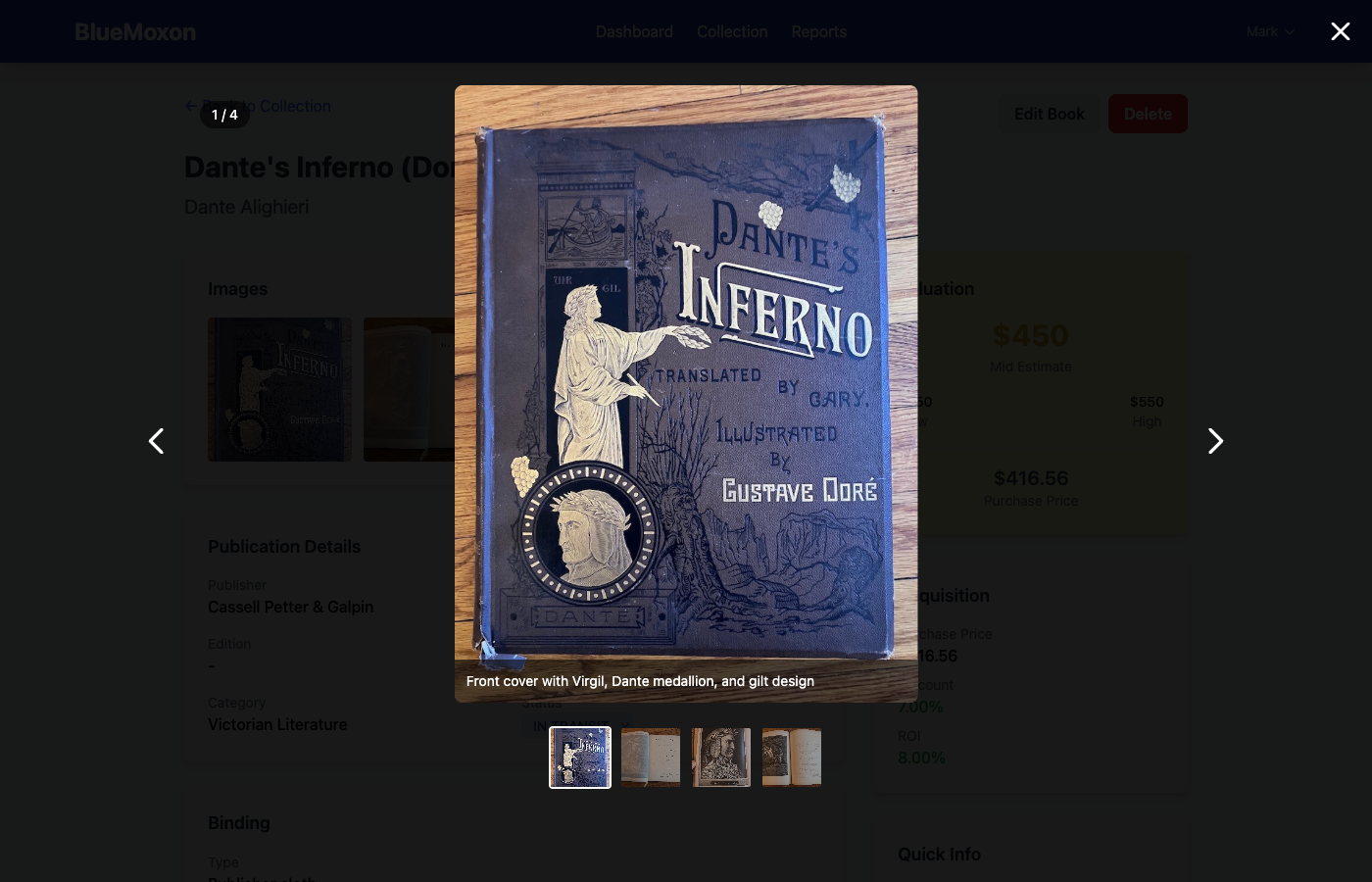
- View Full Size: Click to open in lightbox gallery
Image Gallery
Clicking any image opens a full-screen lightbox with navigation controls. Supports keyboard navigation (arrow keys) and swipe gestures on mobile.
Analysis Editor
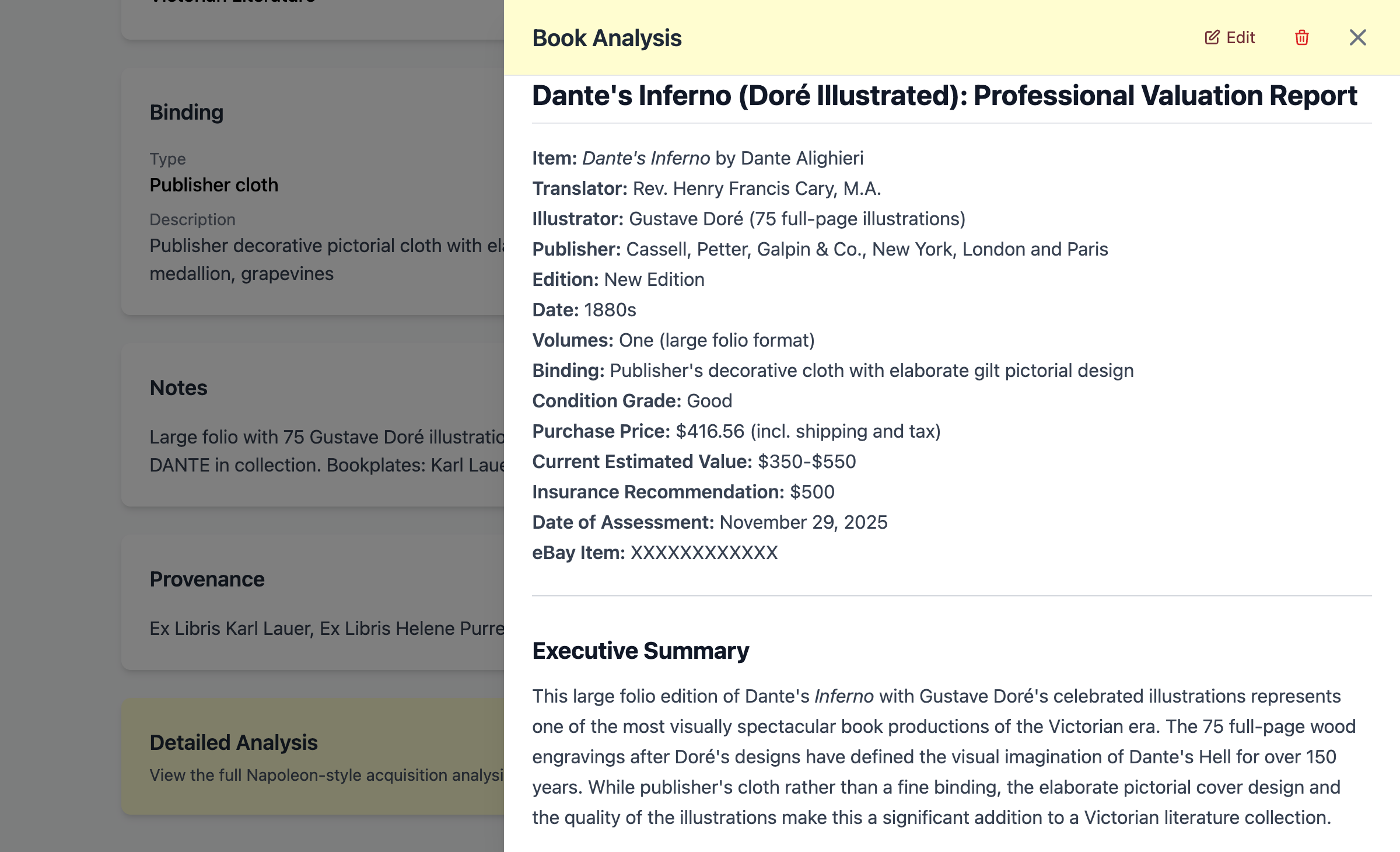
Each book can have a detailed analysis document written in Markdown. The editor provides live preview and supports the full Napoleon Framework for rare book evaluation.
Analysis Sections
- Executive Summary: Brief overview and significance
- Provenance: History and previous ownership
- Physical Description: Binding, paper, condition details
- Valuation: Market analysis and comparable sales
- Recommendation: BUY / PASS / CONDITIONAL BUY
Async Analysis Generation
For complex analyses that require extended processing time, BlueMoxon uses asynchronous generation via SQS queues. This allows analyses to run without timeout limits and provides real-time progress updates.
How Async Analysis Works
- Click Generate Analysis on a book detail page
- Select your preferred model (Sonnet for speed, Opus for quality)
- The job is submitted to the analysis queue
- Monitor progress in real-time - status updates every few seconds
- When complete, the analysis appears automatically
Job Status
| Status | Description |
|---|---|
| pending | Job submitted, waiting in queue |
| running | Analysis in progress |
| completed | Analysis finished successfully |
| failed | Error occurred - check error message |
Model Version Tracking
Each analysis records the AI model version used (e.g., "claude-sonnet-4-20250514"). This allows you to track which model generated each analysis and compare results over time as models improve.
Markdown Formatting
The analysis editor supports GitHub-flavored Markdown with tables, code blocks, and more.
# Book Title

## Executive Summary
Brief overview of the book's significance...

## Physical Description
| Attribute | Value |
|-----------|-------|
| Binding | Full morocco |
| Condition | Very good |

## Valuation
- **Low estimate:** $200
- **Mid estimate:** $275
- **High estimate:** $350
Entity Management
The Reference Data tab in the Admin Config provides a full CRUD interface for managing authors, publishers, and binders. Access it from Config → Reference Data.
Create Entities
Add new authors, publishers, or binders with all relevant metadata fields.
Edit Entities
Update entity details, set tier classifications, mark as preferred.
Delete Entities
Remove entities with no associated books. Entities with books must be reassigned first.
Reassign Books
Move all books from one entity to another, then delete the source entity.
Preferred Entities
Mark entities as "preferred" to give books by that author, publisher, or binder a +10 point bonus in investment scoring. Use this for collection priorities that don't fit into the tier system.
Tier Classifications
| Tier | Bonus | Description |
|---|---|---|
| Tier 1 | +15 pts | Premium/most desirable (e.g., Dickens, Zaehnsdorf) |
| Tier 2 | +10 pts | Notable/collectible (e.g., Darwin, Rivière) |
| Tier 3 | +5 pts | Of interest (e.g., lesser-known Victorian authors) |
Publishers
Publishers include both the company name and location. Common formats include "Chapman and Hall, London" or "Scribner's, New York".
Publisher Fields
- Name: Publisher name (e.g., "John Murray")
- Founded: Year founded (optional)
- Description: Notes about the publisher
- Tier: Tier 1, 2, or 3 classification
- Preferred: Mark for +10 scoring bonus
Binders
For books with identified bindings by known binderies. Common examples include Rivière, Zaehnsdorf, Sangorski & Sutcliffe, and Root & Son.
Binder Fields
- Name: Short name (e.g., "Rivière")
- Full Name: Complete name (e.g., "Rivière & Son")
- Authentication Markers: How to identify genuine bindings
- Tier: Tier 1, 2, or 3 classification
- Preferred: Mark for +10 scoring bonus
Entity Reassignment
Use reassignment to merge duplicate or variant entities. All books are transferred from the source entity to the target, then the source is deleted.
Common Use Cases
- Merge duplicates: "W.M. Thackeray" → "William Makepeace Thackeray"
- Consolidate variants: "Riviere" → "Rivière & Son"
- Fix typos: "Chapmn and Hall" → "Chapman and Hall"
How to Reassign
- Navigate to Config → Reference Data
- Select the entity type tab (Authors, Publishers, or Binders)
- Find the source entity (the one to be merged away)
- Click the Reassign button (↔️ icon)
- Select the target entity from the dropdown
- Confirm the operation
The Common Thread — Administration
The Common Thread network graph is generated from two data sources: shared commercial relationships (publishers and binders) discovered from your collection data, and AI-discovered personal connections (family, friendship, influence, collaboration, scandal) generated by Claude.
How the Graph is Generated
- Publisher edges: Two entities sharing the same publisher are connected (green edges)
- Binder edges: Two entities sharing the same binder are connected (purple edges)
- AI connections: Personal relationships discovered by Claude with confidence scoring and evidence citations
Graph Cache Management
The network graph data is cached for performance. The cache is automatically refreshed when entities or connections are added, edited, or deleted. You can also manually trigger a cache refresh if needed.
Entity Profile Management
Entity profiles are AI-generated biographical summaries that include personal stories, connection narratives, and historical context for every author, publisher, and binder in your collection.
Batch Profile Generation
Generate profiles for all entities at once using the batch endpoint. This is useful after initial setup or when you want to refresh all profiles with a newer AI model.
# Start batch generation
POST /entity/profiles/generate-all

# Monitor progress
GET /entity/profiles/generate-all/status/{job_id}
Regenerate Individual Profiles
Regenerate a single entity's profile when you want to refresh it or after updating entity metadata.
# Regenerate a specific entity profile
POST /entity/{type}/{id}/profile/regeneratePortrait Sync
Portrait Sync automatically discovers and downloads portrait images for entities from Wikidata and Wikimedia Commons. Portraits are matched via SPARQL queries against entity names.
Automated Pipeline
Portrait sync runs automatically as part of the entity enrichment pipeline. When a new entity is created or enriched, the system queries Wikidata for matching portraits and downloads them to the entity's image gallery.
Manual Trigger
# Trigger portrait sync for all entities
POST /admin/maintenance/portrait-sync
Data Sources
| Source | Entity Types | Description |
|---|---|---|
| Wikidata / Wikimedia Commons | Authors, Publishers, Binders | Primary source. SPARQL queries match entity names to Wikidata items and retrieve portrait images from Wikimedia Commons. |
| NLS Historical Maps | Publishers, Binders | Fallback source. National Library of Scotland historical maps showing publisher and bindery locations in Victorian London. |
Model Configuration
BMX 3.0 introduces a Model Registry that allows administrators to configure which AI model is used for each workflow. This provides fine-grained control over cost, speed, and quality tradeoffs.
Available Models
| Model | Default Workflow | Characteristics |
|---|---|---|
| Opus | Book analysis, connection discovery | Highest quality. Best for deep analysis and nuanced relationship discovery. |
| Sonnet | Evaluation runbooks | Balanced quality and speed. Good for structured evaluation tasks. |
| Haiku | Entity profiles, enrichment | Fast and cost-effective. Ideal for high-volume profile generation. |
Configuring Models
Model assignments can be configured via the admin dashboard under
Config → Model Registry, or directly in the
app_config table using model.{flow_name} keys.
# Example app_config entries
model.book_analysis = "claude-opus-4-20250514"
model.eval_runbook = "claude-sonnet-4-20250514"
model.entity_profile = "claude-haiku-3-20250307"
model.connection_discovery = "claude-opus-4-20250514"Dashboard Statistics
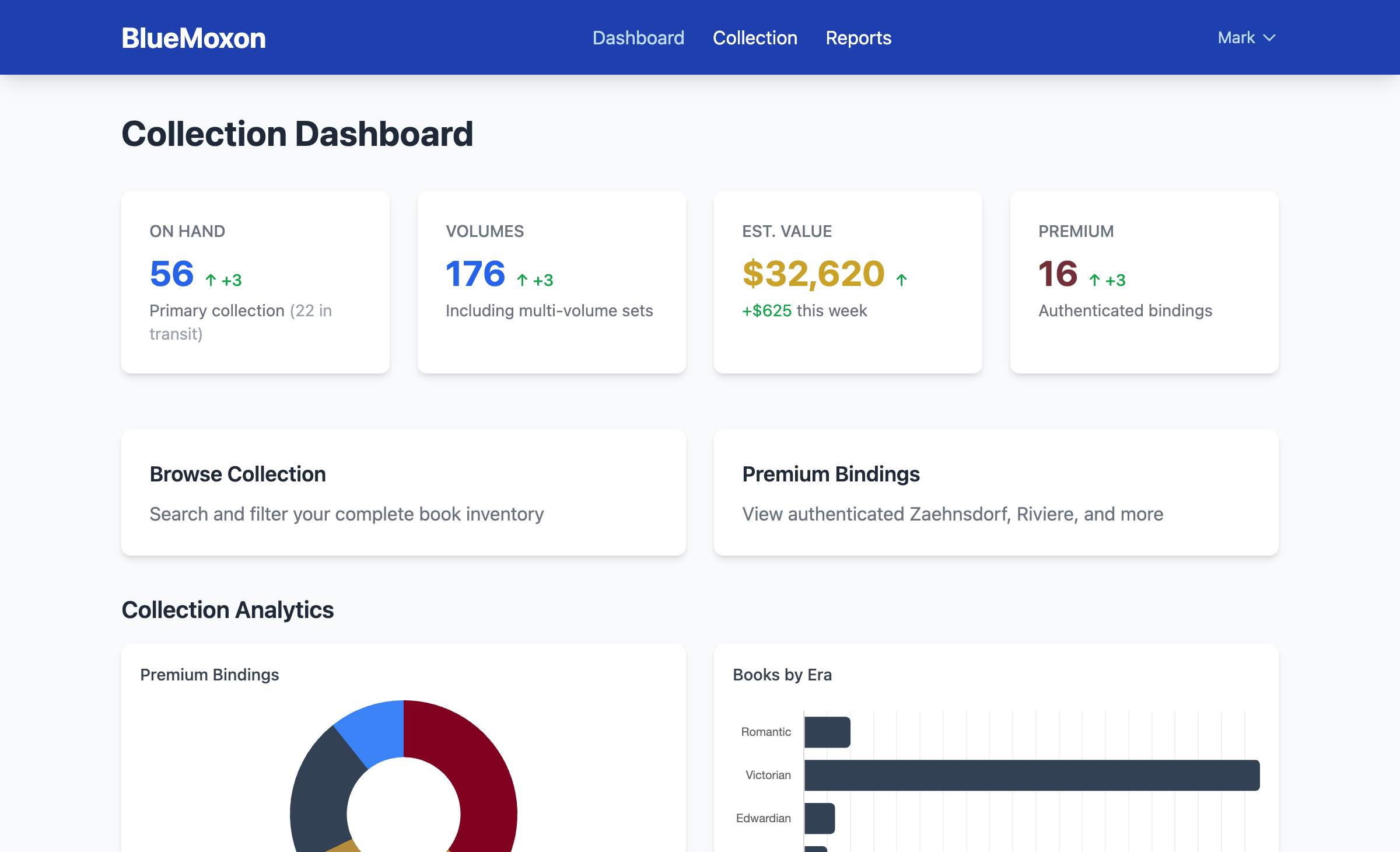
The dashboard provides real-time statistics about your collection.
Available Statistics
- Total Books: Count of all books in collection
- Total Images: Number of uploaded images
- Total Value: Sum of mid-range valuations
- By Inventory Type: Primary, Extended, Flagged breakdown
- By Status: On Hand vs. In Transit
- Recent Additions: Latest books added
Filtering & Search
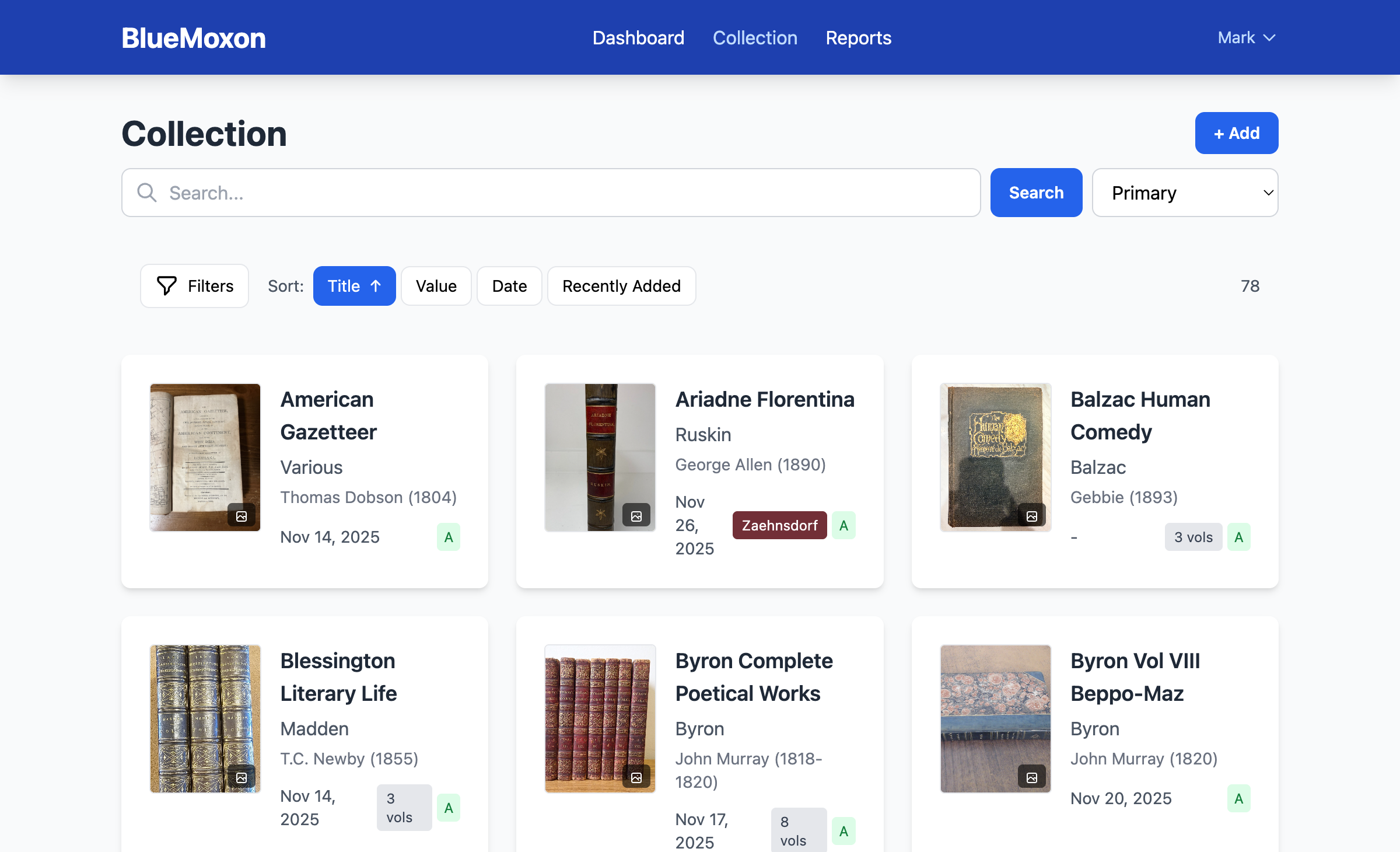
The collection browser supports multiple filter criteria and full-text search.
Filter Options
- Search: Full-text search across title, author, notes
- Author: Filter by specific author
- Publisher: Filter by publisher
- Binding Type: Morocco, calf, vellum, cloth, etc.
- Inventory Type: PRIMARY, EXTENDED, FLAGGED
- Status: ON_HAND, IN_TRANSIT, SOLD
- Date Range: Filter by publication date
Sort Options
- Title (A-Z, Z-A)
- Author (A-Z, Z-A)
- Publication Date (oldest first, newest first)
- Date Added (oldest first, newest first)
- Value (low to high, high to low)
User Roles
BlueMoxon supports different user roles through Cognito groups. Roles determine what actions users can perform.
| Role | Permissions |
|---|---|
| Admin | Full access: add, edit, delete books; manage users; all features |
| Editor | Add and edit books, upload images, write analyses; cannot delete or manage users |
| Viewer | Read-only access to all book data; cannot make modifications |
| Public | Unauthenticated access; browse-only with limited detail |
Cognito Administration
User accounts are managed through AWS Cognito. Admin users can manage other users via the AWS Console or Cognito APIs.
Managing Users in AWS Console
- Navigate to the AWS Console and open Cognito
- Select the BlueMoxon User Pool
- Click on "Users and groups" in the left sidebar
- Create, edit, or disable user accounts as needed
- Assign users to groups (Admin, Editor, Viewer) to set permissions
Adding Users to Groups
- In Cognito User Pool, select the "Groups" tab
- Click on the desired group (e.g., "Admin")
- Click "Add users to group"
- Select the user(s) to add
- The user's role takes effect on their next sign-in
Common User Management Tasks
- Reset Password: Use "Reset password" action to send reset email
- Disable Account: Toggle user status to disable login
- Enable MFA: Configure MFA settings in User Pool settings
- View Sign-in History: Check user attributes and last login
cognito-idp commands.
# List users in the pool
aws cognito-idp list-users --user-pool-id us-west-2_XXXXX

# Add user to admin group
aws cognito-idp admin-add-user-to-group \
  --user-pool-id us-west-2_XXXXX \
  --username user@example.com \
  --group-name Admin
Garbage Image Review
BlueMoxon's AI automatically flags images that don't appear to be book photographs. The Maintenance tab lets you review these flagged images and confirm or override the classification.
What Gets Flagged
- Seller logos: Watermarks and branding images
- Screenshots: Computer or phone screenshots
- Text images: Scanned text or certificates
- Unrelated photos: Non-book images in listings
Reviewing Flagged Images
- Navigate to Config → Maintenance
- View the list of images flagged as garbage
- For each image, choose to Confirm (delete) or Keep (override)
- Confirmed garbage images are permanently deleted
Orphan Cleanup
The Maintenance tab identifies and helps clean up orphaned database records - data that has lost its parent relationship.
Types of Orphans
| Type | Description | Safe to Delete |
|---|---|---|
| Orphan Images | Images with no associated book | Yes |
| Orphan Analyses | Analysis documents with no book | Yes |
| Orphan Jobs | Analysis jobs with no book | Yes |
Running Cleanup
- Navigate to Config → Maintenance
- Click Detect Orphans to scan the database
- Review the list of orphaned records
- Click Cleanup Orphans to remove them
Victorian Dark Mode
BlueMoxon features an elegant dark theme inspired by Victorian aesthetics. Deep burgundy backgrounds, parchment-colored text, and gold accents create a distinguished reading experience.
Enabling Dark Mode
- Toggle: Click the moon/sun icon in the navigation bar
- System sync: Automatically follows your OS preference
- Persistence: Your choice is saved and applied on every visit
Color Palette
| Element | Light Mode | Dark Mode |
|---|---|---|
| Background | White (#ffffff) | Deep burgundy (#1a0a0f) |
| Surface | Gray (#f8f9fa) | Dark burgundy (#2d1a20) |
| Text | Dark gray (#1f2937) | Parchment (#e8dcc8) |
| Accent | Blue (#3b82f6) | Gold (#c9a227) |
prefers-reduced-motion
setting. If you have motion reduction enabled, transitions will be minimized.